

BandLab is where a lot of songs get made now: a beat dragged into the Studio, a few vocal takes on top, all in a browser or on a phone. What BandLab does not do is mix them. Its Mastering works on the finished mixdown, and BandLab describes AutoMix, part of its paid membership, as balancing your tracks' volume and panning by genre. Neither one EQs your vocal, controls its dynamics or makes room for it in the beat. That is the mix itself, and it starts with getting each track out of BandLab as its own file: a stem.
This guide covers the export on the web and in the phone app, the settings that quietly ruin stems, and then the mix, step by step. Working in Logic, FL Studio or Ableton instead? How to Export Stems in Logic, Ableton, FL Studio, Reaper & GarageBand covers those.
Three things to check before you export
Unmute everything that belongs in the song. The export lists every track, muted ones included, and a muted track can come out silent.
Decide what happens to your effects. Assume whatever you hear on a track ends up in its stem: its effects, volume, pan and automation. Keep what is part of the sound, like AutoPitch on a vocal you wrote with it. Turn off reverb and delay you added to make the demo sound finished, because the mix adds space to everything together and cannot take yours back out. The Effects panel has a button that bypasses a track's whole chain.
Keep one part per track. If the beat is one track, it becomes one stem. If you stacked the hook on four tracks, it stays four stems, and the mix treats them as one stack. How Many Stems for Mixing? covers how to group them.
Export stems from BandLab on the web
This is the fast way, and it works for projects you started on your phone too.
- Open the project in Studio on bandlab.com, on a computer.
- Click the ☰ menu in the top left, then Project > Download > Tracks. BandLab saves the project and opens Download Stems.
- Switch the format from M4A to WAV. M4A is selected by default, and it is a compressed format that throws away detail the mix needs. Bandmixr takes WAV, FLAC, AIFF or MP3, not M4A. WAV, FLAC or MP3? explains the difference.
- Click the download arrow next to each track. There is no download all button, so it is one click per stem.
- While you are in the menu, also grab Download > Mixdown As in WAV. You will want it later to compare.
BandLab's WAV stems come out at 16-bit and 44.1 kHz, which is fine for mixing.
Export stems from the BandLab app on your phone
The app exports one track at a time.
- Tap the Library icon at the bottom right and open your project in Studio.
- Tap the faders icon at the bottom left to open the Mix View.
- Tap ⋯ on a track, choose Export as Audio/MIDI, and pick WAV.
- Save the file with Files, Google Drive or Dropbox.
- Repeat for every track.
If there is a computer nearby, open the same project on bandlab.com and use the web export instead: it is faster, and every stem comes out of the same dialog. The one exception is a track that uses a mobile-only feature, which the web Studio marks as unsupported. Export that one from the app.
Check the files before you upload
- One WAV per track, named after the track. Something like
Night Drive - Lead Vocal.wavis perfect. Descriptive names (Beat, Lead Vocal, Double, Adlibs) help, because Bandmixr reads them to guess what each stem is. - Every stem starts at the top of the song. Do not trim silence off the front of a file. Imported audio in BandLab can start with a few seconds of silence, and that silence is what keeps it in time with everything else.
- No M4A files. If one slipped through, export that track again as WAV.
- Instrument tracks come out as audio. A beat you built in BandLab with its drum machine and synths exports as several stems, one per instrument track, which gives the mix more to work with than a single beat file.
Bandmixr's free plan takes up to 16 stems, the same number of tracks a free BandLab project can hold.
Mix the stems in Bandmixr
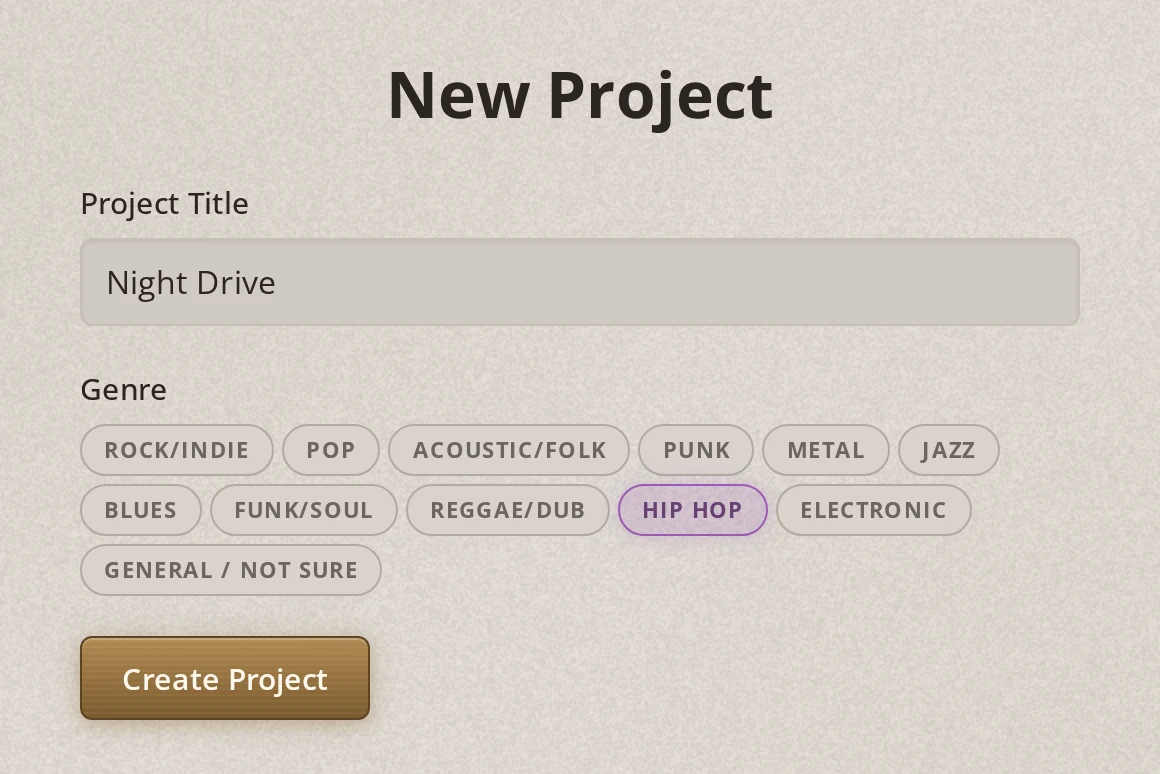
Step 1: Create a project and pick the genre
Name the project and choose the genre closest to the song. The genre sets how the whole mix behaves, from where the vocal sits to how much space everything gets.
Step 2: Drop in the stems
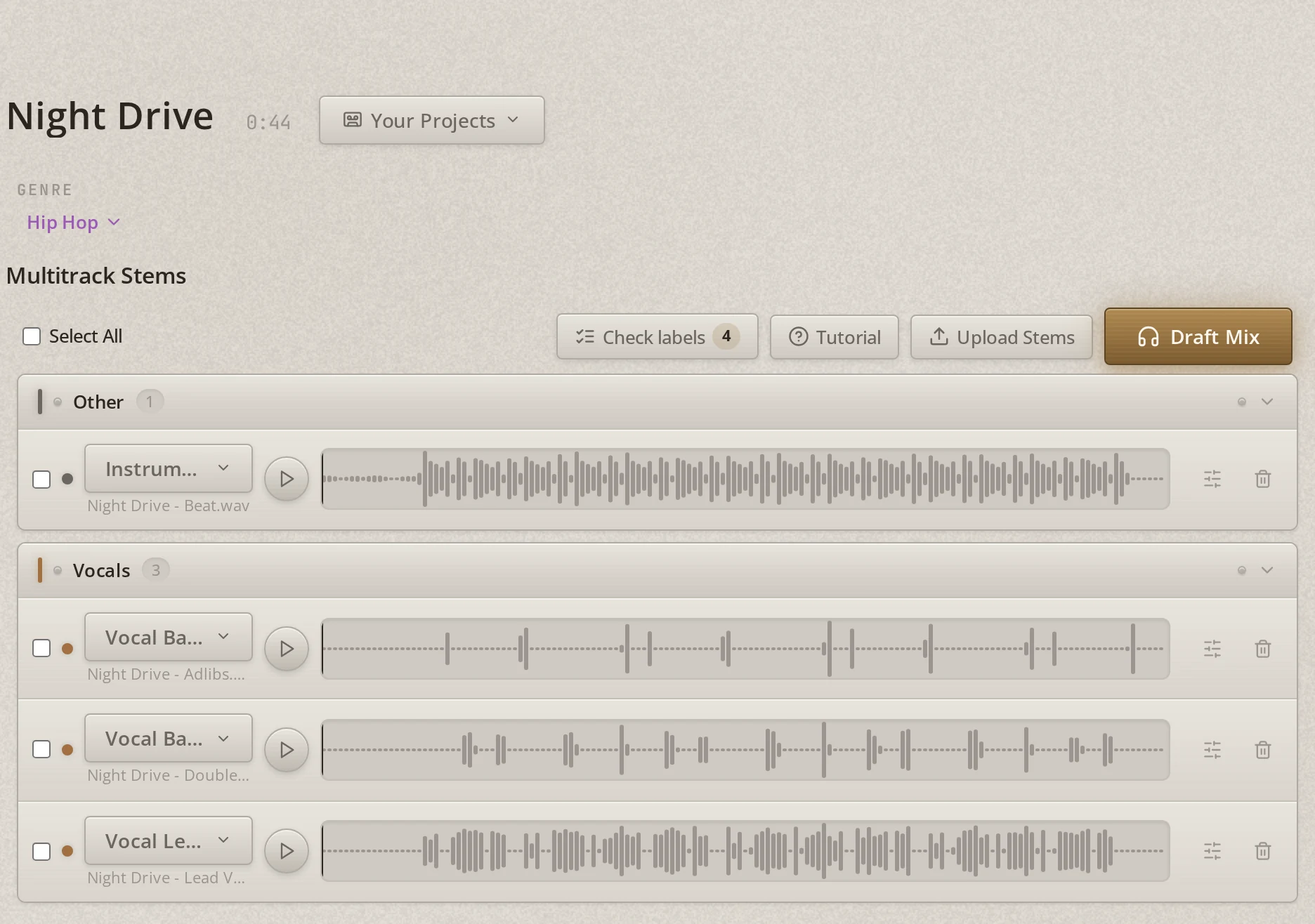
Drag all the WAVs into the project at once. Bandmixr analyzes each one and guesses its label from the file name. In this session the beat became Instrumental / Beat, the lead became Vocal Lead, and the double and the ad-libs became Vocal Backing.
Step 3: Check the labels
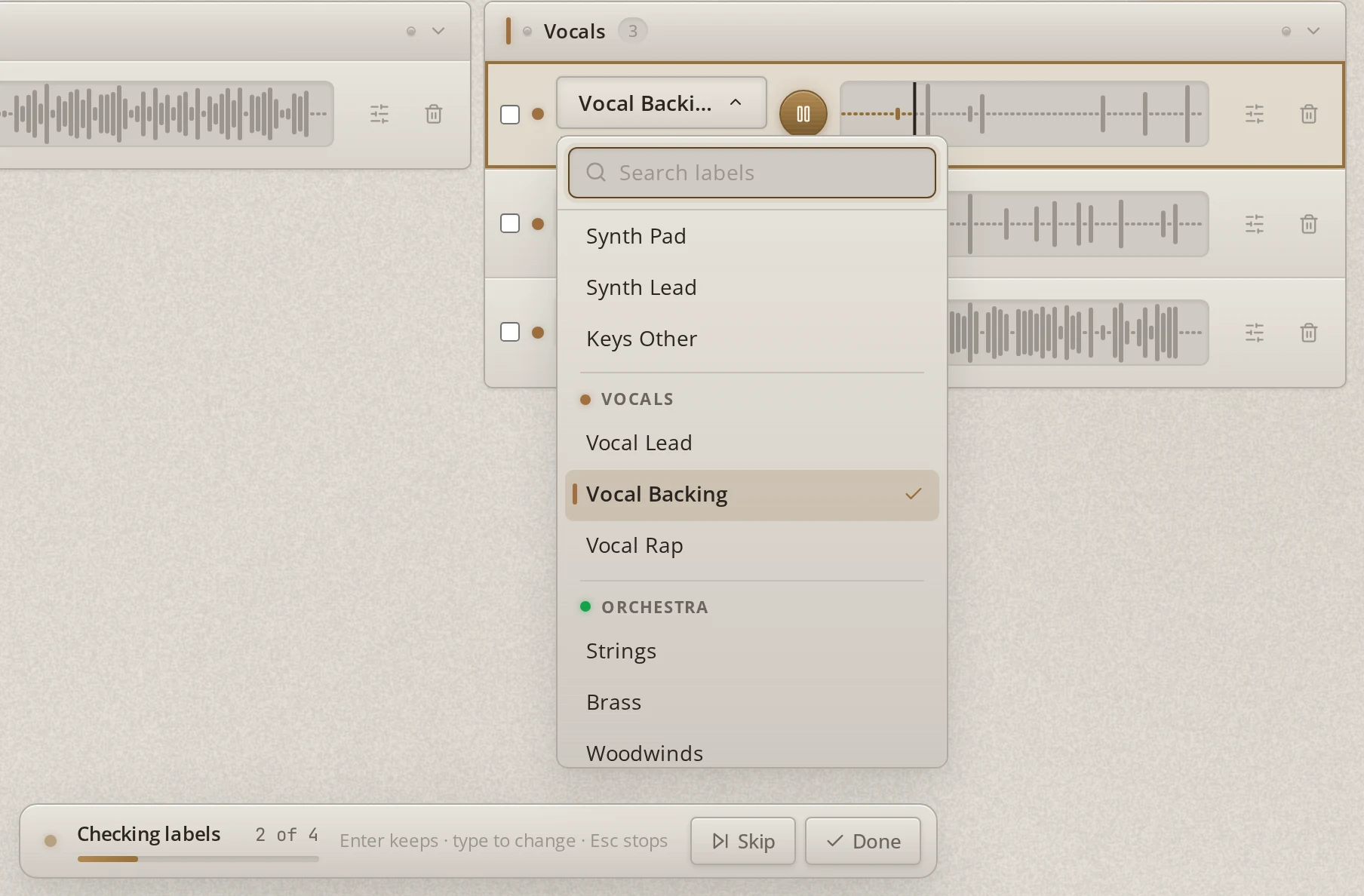
Click Check labels. Bandmixr plays each stem and opens its label: Enter keeps it, typing changes it. Labels decide how each stem is mixed, so this is the minute worth spending. For a rap song, put the main take on Vocal Rap or Vocal Lead, and doubles, ad-libs and hook stacks on Vocal Backing. A finished beat on Instrumental / Beat is left the way the producer made it, and the vocals are mixed around it. How to Mix Vocals Over a Beat You Bought explains why that matters.
Step 4: Make a draft and fix it in the mixer
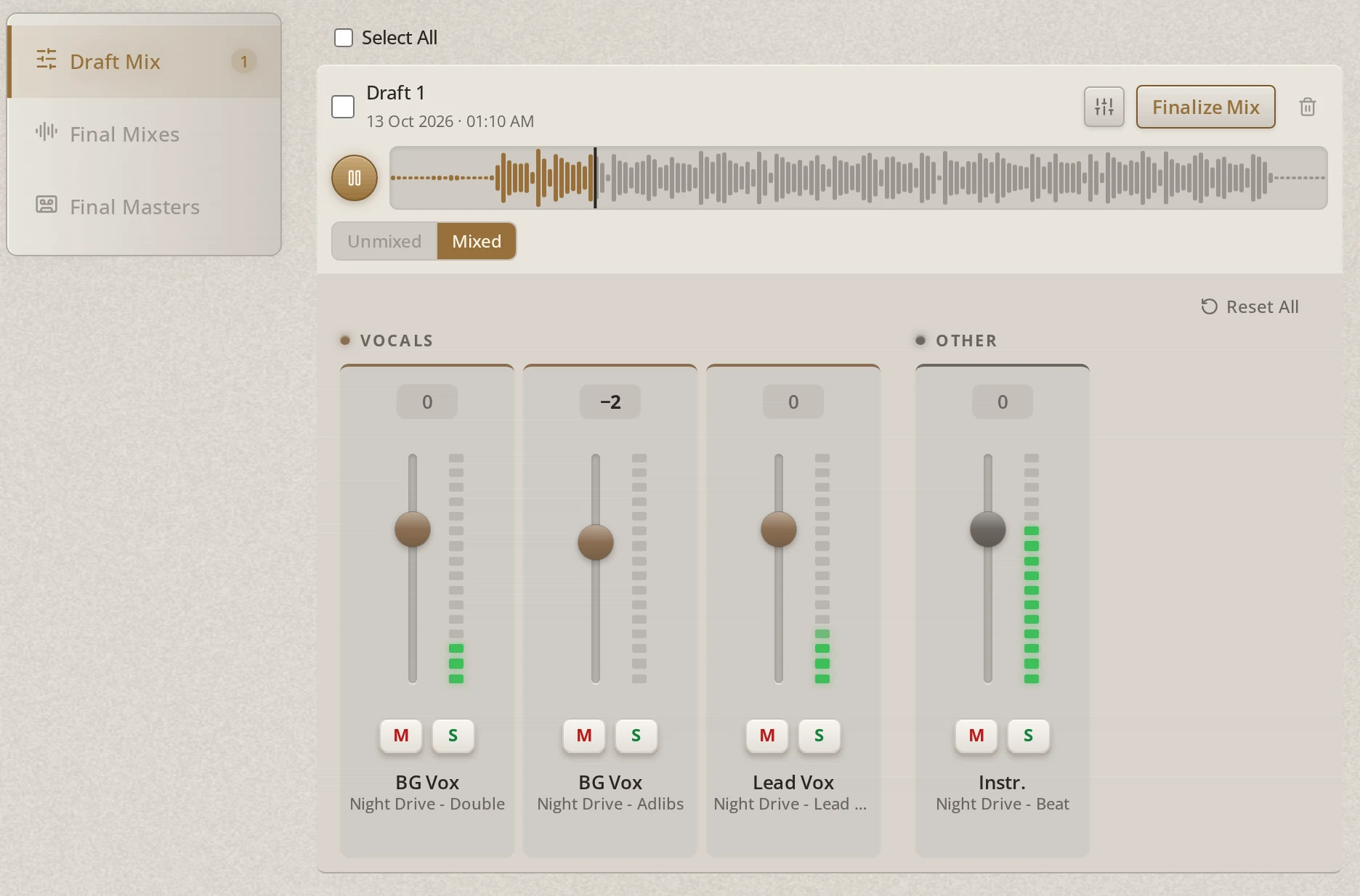
Click Draft Mix. When it is ready, play it and switch between Unmixed and Mixed to hear what changed. If something is off, open the mixer with the fader button next to that switch: every stem gets a fader, mute and solo, with live meters. Here the ad-libs went down 2 dB. Pan and reverb sit on each stem in the list below.
Step 5: Finalize and master
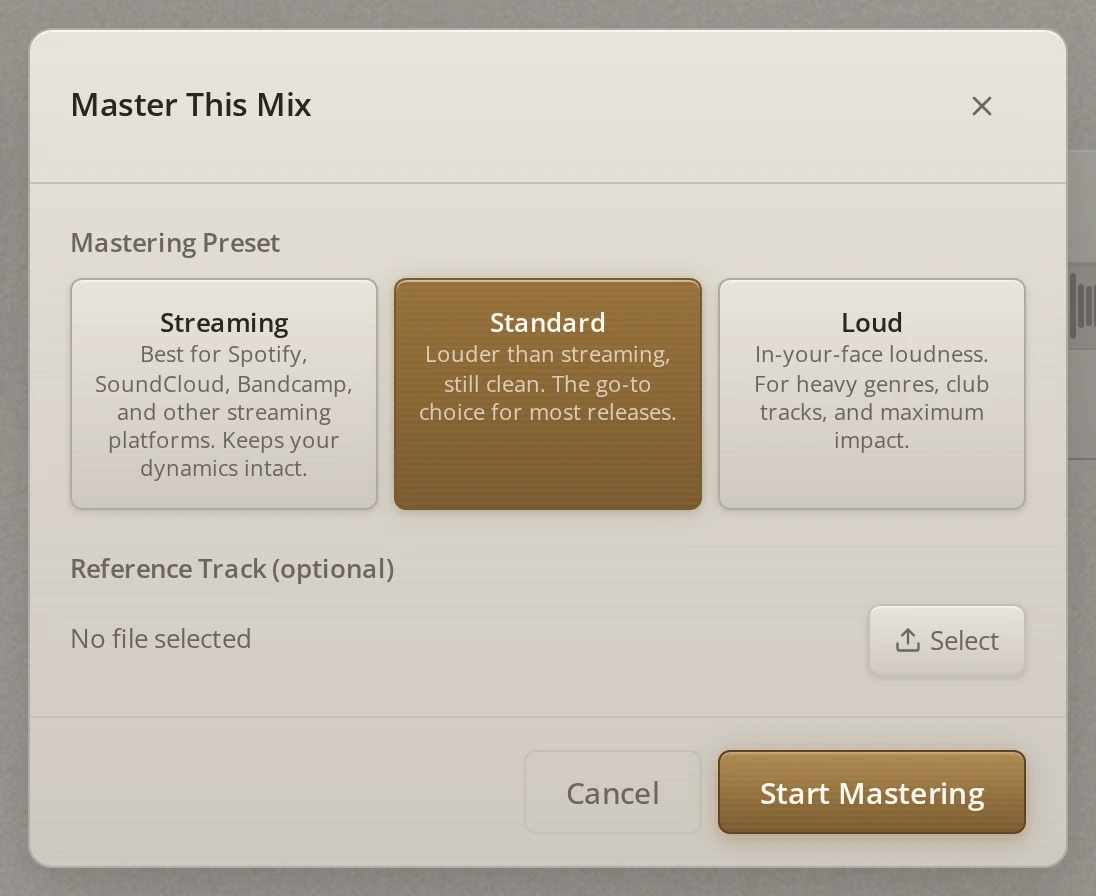
When the balance is right, click Finalize Mix, then Create Master on the final mix. Pick a preset: Streaming keeps the most dynamics, Standard is louder and the usual choice, Loud is for songs that have to hit as hard as possible. Pick Your Master Loudness helps you choose.
Step 6: Compare with your BandLab mixdown
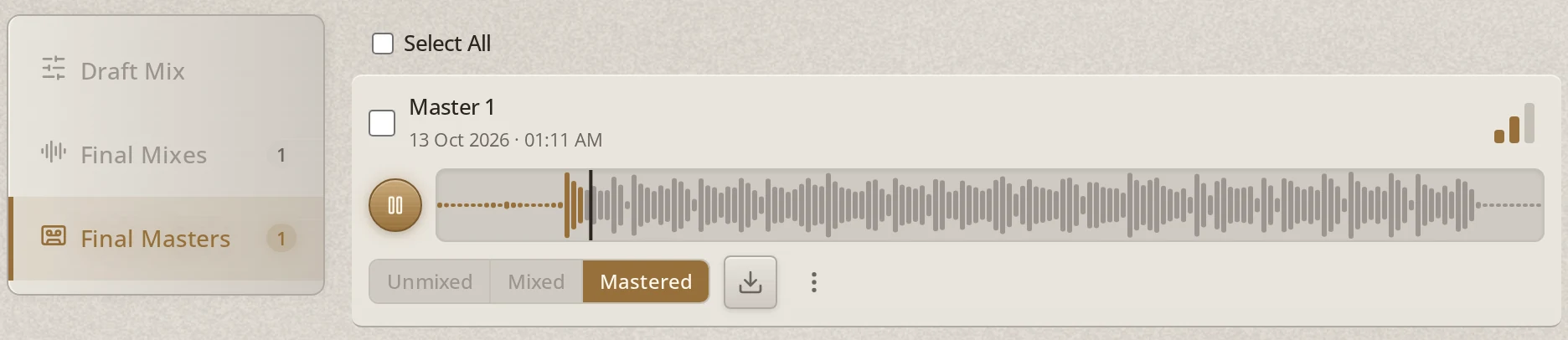
Open Final Masters and switch between Unmixed, Mixed and Mastered. Then play the BandLab mixdown you saved next to the master, with the louder one turned down until both play at the same volume. A master always wins on loudness alone, so only a level-matched comparison tells you whether the mix did its job.
Why not just master the BandLab mixdown?
Mastering, BandLab's or anyone's, works on the mixdown: one stereo file where the vocal and the beat are already glued together. It can make that file louder and brighter. It cannot turn the vocal up against the beat, tame one harsh ad-lib or make room for the lead in the 808. Can You Mix a Single Stereo File? explains why.
BandLab's Splitter goes the other way: it guesses stems out of a finished song. Use it only when the original project is gone. The real tracks will always be cleaner than a split.
Export your stems, upload them to bandmixr.com, pick your genre and compare the result with your mixdown at the same volume. The first download is free.